
From this post, you can download and install the latest USB drivers for all the Bravis devices. This smartphone manufacturer has a decent set of devices running on the MediaTek or Spreadtrum chipset. Most of them belong to the budget segment that doesn’t burn a hole in your pockets. At the same time, they check all the requirements that a buyer could have asked for. Hence, it has managed to have a niche segment of its loyal fanbase.
These devices support all the basic tasks with ease, and along the same lines, it has some support in the custom development, which includes rooting, flashing, and unlocking the bootloader, among others. But for each of these tasks to be effectively carried out, there is one major requirement. And that is the need for the device-specific drivers installed on your PC. Henceforth, in this guide, we will provide you with the latest USB drivers for all Bravis devices.
What are USB Drivers
So one question that might pop up in your mind is, what exactly are these drivers? Well, USB drivers are a software program that makes it possible for the PC to recognize the type of device connected. Since quite a lot of devices make use of the USB connection mode, your PC might have a tough task at hand in recognizing the device currently connected in a USB mode.
This is where the USB Drivers come into the picture. Once you have the Bravis USB drivers installed on your PC, the latter will have no issues as such in identifying that device and hence will allow you to carry out your desired task. Talking about which, here are some tasks that you could efficiently carry out with the help of these drivers. Follow along.
Advantages of USB Drivers
There is a plentitude of advantages that these drivers bring with them. To begin with, it allows for all types of files to be transferred between your smartphone and PC. Likewise, you could also use USB Tethering and share your device’s internet with the PC. Along the same lines, the user makes use of the MIDI option for interacting with musical equipment and the PTP mode for transferring photos via the camera.
Taking it a step further, tech enthusiasts could then unlock the device’s bootloader and install custom ROMs. They could also flash a custom recovery like TWRP or root their device via Magisk. Trying out tons of ADB and Fastboot commands also becomes a possibility. And for each of them, you will have to connect your device to your PC via USB, and your PC should have the drivers installed. With that said, you could now download the Bravis USB drivers from the section below and proceed with the installation steps.
List of Supported Bravis Devices with Download Link
You could now grab hold of the latest USB Drivers for your Bravis devices from the section below.
| Model Name | Download Links |
| Bravis NB871 4G | Download |
| Bravis NB851 | Download |
| Bravis A510 Jeans | Download |
| Bravis N1-570 Space | Download |
| Bravis N1-550 Cruiser | Download |
| Bravis A509 Jeans | Download |
| Bravis A512 Harmony Pro | Download |
| Bravis A511 Harmony | Download |
| Bravis A505 Joy Plus | Download |
| Bravis A552 Joy Max | Download |
| Bravis A506 Crystal | Download |
| Bravis A553 Discovery | Download |
| Bravis X500 Trace Pro | Download |
| Bravis A554 Grand | Download |
| Bravis S500 Diamond | Download |
Installation Steps
Once you have downloaded the drivers, here are the required installation steps:
- Extract the contents of the Bravis USB drivers to your PC.
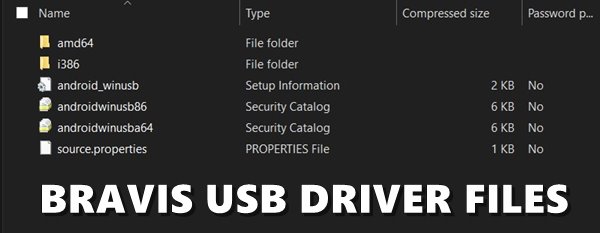
- Now connect your device to the PC via the USB cable.
- Head over to the Start menu and search for Device Manager, or you could also right-click on the Windows icon and select the same.
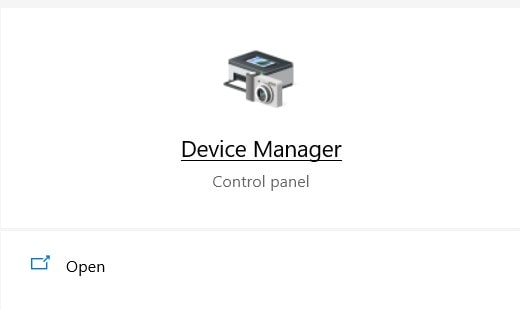
- Within that, scroll to the Other devices section. In earlier Windows builds, you might see a Portable devices section instead of the former.
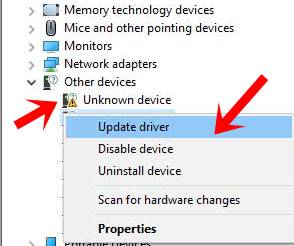
- Click on the Other devices section to expand it, and you should see your device named as an Unknown device.
- Right-click on it and select the Update Drivers option.
- In the next menu that appears, select Browse my Computer for Updated Driver software.
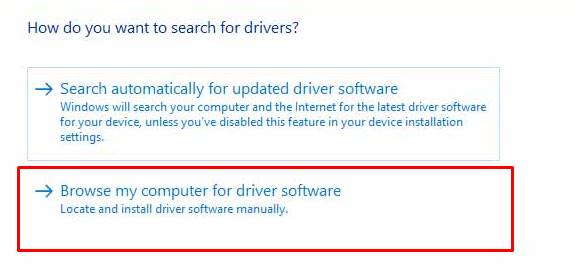
- Now navigate to the folder where you have extracted the Bravis USB drivers and select it.
- Click on the Next button and wait for the installation process to complete. However, if you are facing any issues, then you could manually add the android_winusb file as well.
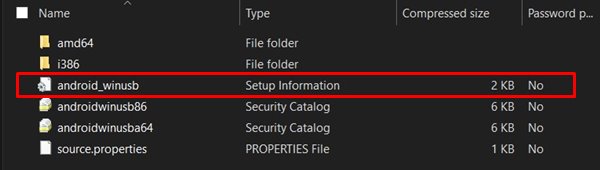
- For that, again right-click on your device’s name, select Update Drivers, and select Browse my Computer for Updated Driver software.
- This time select Let me pick from a list of device drivers on my computer. Then select Show all devices and hit the Next button.
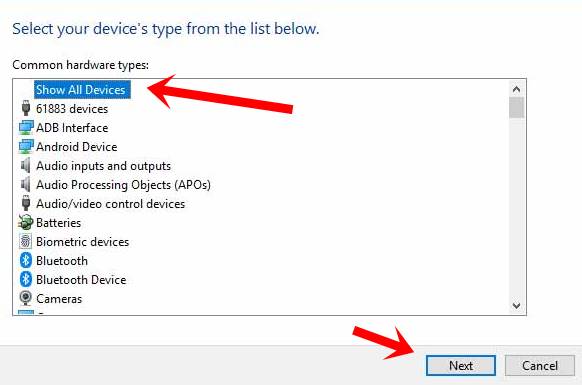
- Next up, click on the Have Disk button.
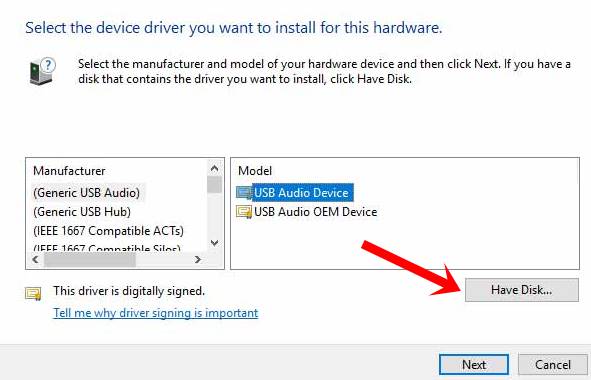
- Navigate to the folder where you have extracted the Bravis USB driver and select the android_winusb file within that folder, and click on Open.
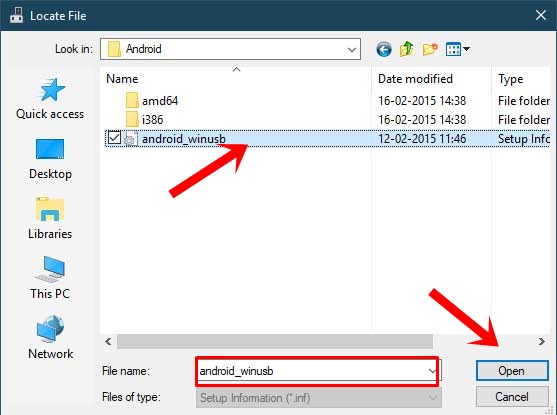
- Select the Android Bootloader Interface option and click the Next button. After this, the installation will start, and you should face no issues this time.
With this, we conclude the guide on how to download and install the latest Bravis USB drivers. If you still have queries regarding the aforementioned steps, do let us know in the comments section below. Rounding off, here are some iPhone Tips and Tricks, PC tips and tricks, and Android Tips and Trick that you should check out as well.