
Where Winds Meet is a visually stunning open-world wuxia RPG, but its demanding nature can lead to frustrating performance issues on PC. Many players report not just low FPS, but persistent stuttering, lag spikes, and game freezes that disrupt immersion.
This guide is tailored to tackle these specific problems. Follow the steps below to stabilize your framerate and achieve a much smoother gameplay experience.

First: Check Your System’s Foundation
Before diving into tweaks, ensure your PC meets the game’s demands. Stuttering often occurs when a system is at its limit.
Minimum Requirements
-
OS: Windows 10/11 64-bit
-
Processor: Intel Core i7-7700K / AMD Ryzen 5 1600
-
Memory: 16 GB RAM
-
Graphics: GTX 1060 (6 GB) / RX 480 (8 GB)
-
Storage: 100 GB available space (SSD strongly recommended)
If your PC is near the minimum specs, the following fixes are crucial.
Fixes for Stuttering, Lag, and Freezing
1. Install the Game on an SSD (Critical Fix for Stuttering)
If installed on a traditional hard drive (HDD), asset streaming can’t keep up, causing constant stutters as the game loads new areas and textures.
-
Solution: Move Where Winds Meet to an SSD. This is one of the most impactful fixes for open-world game stuttering.
2. Update Your Graphics Drivers
Outdated drivers are a common cause of instability and freezing.
-
NVIDIA Users: Open GeForce Experience, check for updates, and install the latest game-ready driver.
-
AMD Users: Open AMD Radeon Software and check for updates in the “Updates” tab.
-
Restart your PC after updating.
3. Optimize In-Game Settings for Stability
Prioritize stable performance over pure visual fidelity.
-
V-Sync: Try turning this On. It can help smooth out erratic frametimes that feel like stuttering.
-
Shadow Quality: Set to Low or Medium. Shadows are very demanding and a common source of framepacing issues.
-
Texture Quality: If you have less than 8GB VRAM, set this to Medium to prevent lag spikes from loading high-res textures.
-
Ray Tracing: Disable this entirely if you are experiencing freezing.
-
Upscaling (DLSS/FSR/XeSS): Enable Performance or Quality mode. This reduces the native rendering load, greatly improving smoothness.
4. Adjust the Game’s CPU Priority
Prevent background processes from interrupting the game’s CPU access, which can cause hitches.
-
Launch the game and get to the main menu.
-
Open Task Manager (Ctrl+Shift+Esc).
-
Go to the Details tab.
-
Right-click
WhereWindsMeet.exeand Set Priority to High.
(Note: You may need to repeat this each time you launch the game.)
5. Disable Background Applications and Overlays
Other software can conflict with the game, causing lag spikes and freezes.
-
Discord Overlay: Go to Discord Settings > Game Overlay > Turn it OFF.
-
Steam Overlay: In Steam Library, right-click the game > Properties > Uncheck “Enable the Steam Overlay…”
-
Xbox Game Bar: Press
Win + I, go to Gaming > Game Bar, and turn it off. -
General Background Tasks: Close web browsers, especially Chrome, and other resource-heavy apps before playing.
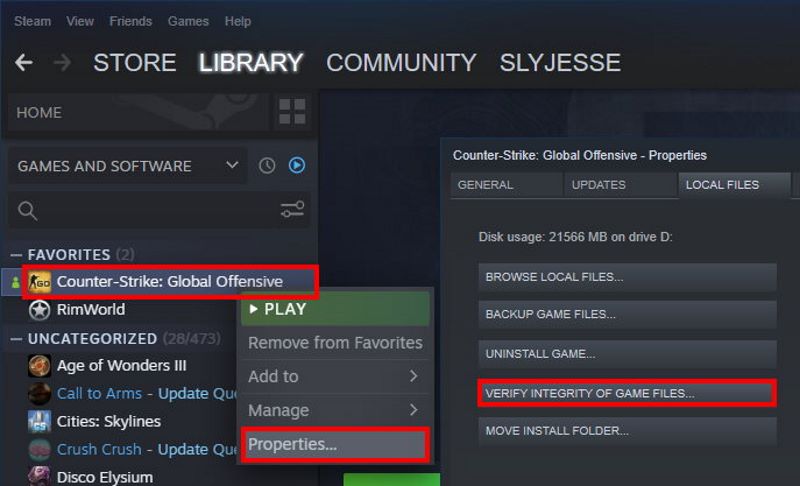
6. Verify Integrity of Game Files
Corrupted or missing files can lead to constant crashing and freezing.
-
On Steam: Library > Right-click “Where Winds Meet” > Properties > Installed Files > “Verify integrity of game files…”
-
On Epic Games: Library > Click the “…” next to the game > Select “Verify”.
7. Ensure Windows and DirectX are Updated
A outdated OS can cause compatibility issues.
-
Press
Win + I, go to Windows Update, and install all available updates.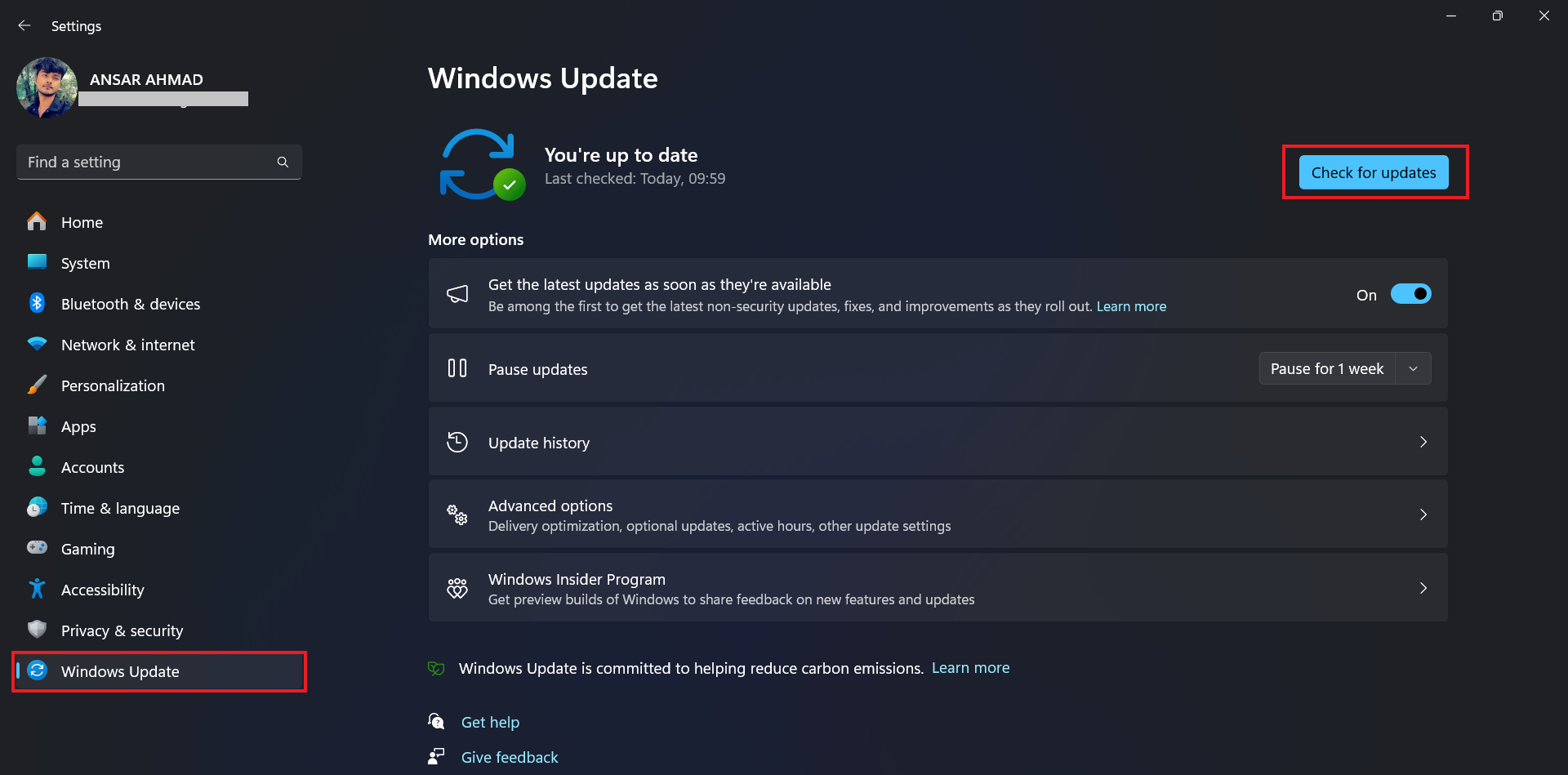
-
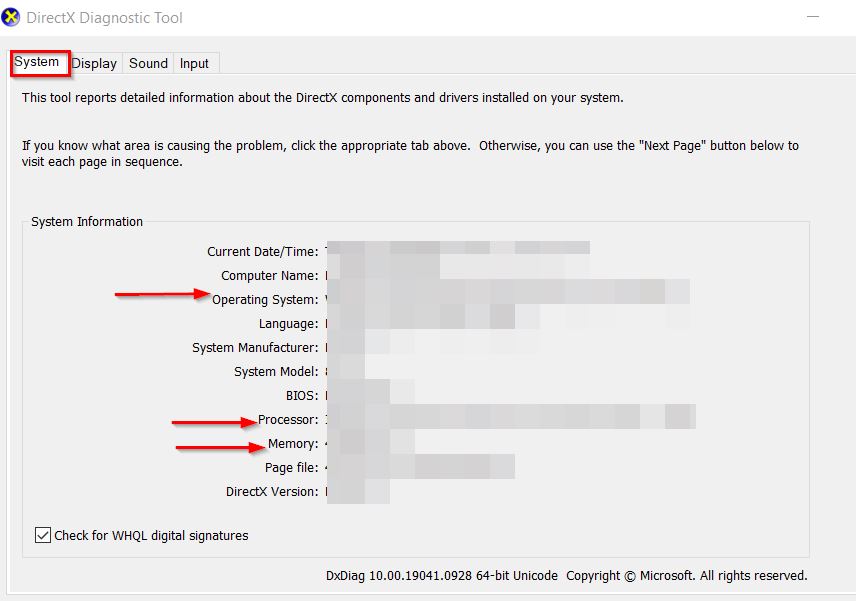
Ensure you are running the latest version of DirectX 12.
8. Check for Overheating
If your CPU or GPU is overheating, it will throttle performance, leading to sudden lag and freezing.
-
Use a monitoring tool like MSI Afterburner to check your temperatures while the game is running. If they are consistently above 85-90°C, clean your PC’s fans and ensure proper airflow.
Advanced Fix: Adjust Shader Cache Size (NVIDIA Users)
An insufficient shader cache can cause repeated stutters as shaders are recompiled.
-
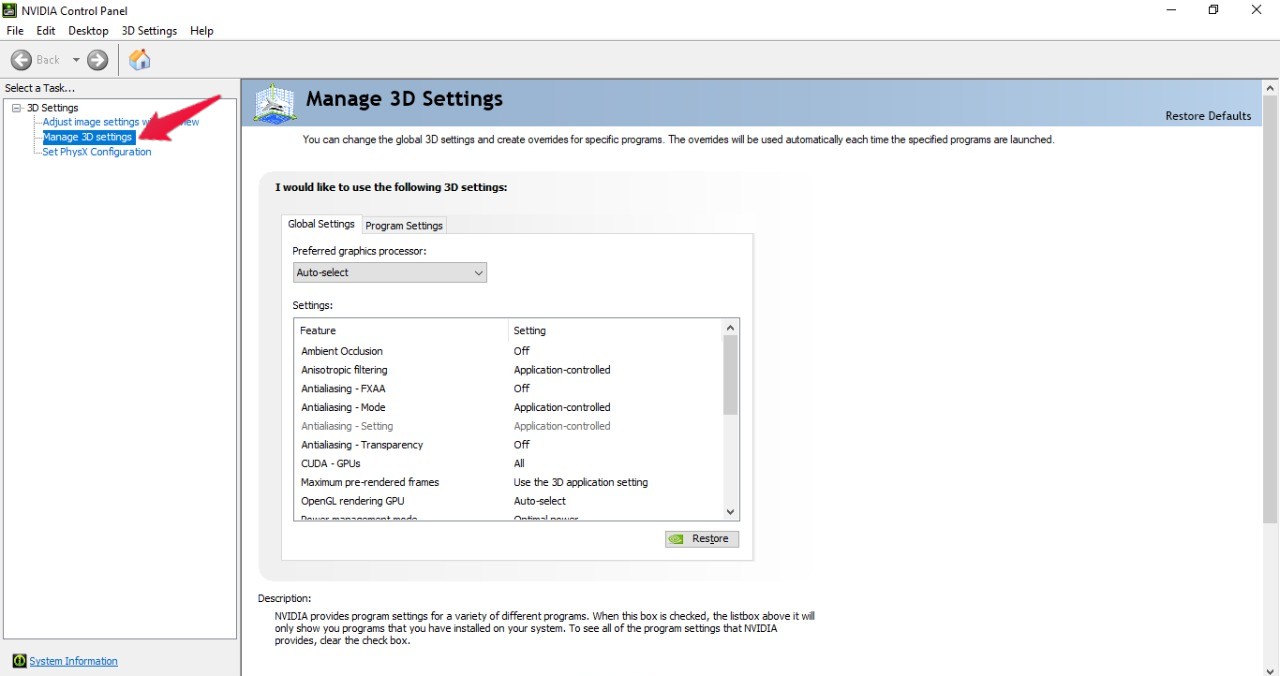
Open the NVIDIA Control Panel.
-
Go to “Manage 3D Settings”.
-
Under the “Global Settings” tab, find “Shader Cache Size”.
-
Set it to 10 GB (or at least increase it from the default).
Final Step: Reinstall the Game
If all else fails, a fresh installation can resolve deep-seated corruption that verification misses.
Conclusion
Stuttering, lag, and freezing in Where Winds Meet are often tied to storage speed, background processes, and specific graphics settings. By methodically working through these fixes—starting with the SSD and driver updates—you can significantly improve the stability and smoothness of your wuxia adventure.
Discussion
1 CommentI have a highend PC and this game is the only game I get this problem when trying to play. In the intro where u ride a horse, my fan starts spinning like crazy (never heard it like that before) and the game freezes. I must push the offbutton on my PC to stop this. It sounds really unhealthy for my PC. Anyone experiencing the same?