
Where Winds Meet, the highly anticipated open-world wuxia action RPG from Everstone Studios and NetEase Games, is available on PC, PlayStation 5, and Smartphones. While the game offers beautiful visuals and immersive martial-arts gameplay, some PC players are experiencing performance problems such as low FPS, stuttering, lag spikes, or frame drops.
If you’re facing these issues, don’t worry—this guide will help you optimize your game and improve performance significantly.

1. Check System Requirements
Before trying fixes, ensure your PC meets or exceeds the game’s minimum requirements.
Minimum Requirements
Requires a 64-bit processor and operating system
-
OS: Windows 10/11 64-bit
-
Processor: Intel Core i7-7700K / AMD Ryzen 5 1600
-
Memory: 16 GB RAM
-
Graphics: GTX 1060 (6 GB) / RX 480 (8 GB)
-
DirectX: Version 12
-
Network: Broadband Internet connection
-
Storage: 100 GB available space
-
Note: SSD installation recommended
Recommended Requirements
Requires a 64-bit processor and operating system
-
OS: Windows 10/11 64-bit
-
Processor: Intel Core i7-10700 / AMD Ryzen 7 3700X
-
Memory: 32 GB RAM
-
Graphics: RTX 2070 SUPER / RX 6700 XT / ARC A750
-
DirectX: Version 12
-
Network: Broadband Internet connection
-
Storage: 100 GB available space
-
Note: SSD installation strongly recommended
If your PC meets only the minimum specs, consider lowering graphics settings for smoother gameplay.
2. Update Graphics Drivers
Outdated drivers cause FPS drops, stuttering, and overall poor performance. Updating your GPU drivers often results in immediate improvements.
How to Update GPU Drivers
-
Right-click Start → Device Manager
-
Expand Display adapters
-
Right-click your GPU → Update driver
-
Select Search automatically for drivers
Or download manually
-
NVIDIA: Use GeForce Experience
-
AMD: Use AMD Radeon Software
Restart your PC after updating.
3. Optimize In-Game Graphics Settings
Running the game at ultra settings on a mid-range PC will drastically reduce FPS. Adjusting graphics settings is the fastest way to boost performance.
Recommended Settings for Smooth Gameplay
-
Texture Quality: Medium or Low
-
Shadow Quality: Low
-
Ray Tracing: Off
-
V-Sync: Off (turn on only if screen tearing appears)
-
DLSS / FSR: Enabled (major FPS boost)
-
Screen Mode: Fullscreen
After applying settings, restart the game to ensure they take effect.
4. Close Background Applications
Background apps use CPU, GPU, RAM, and disk resources, affecting in-game FPS.
How to Close Unnecessary Tasks
-
Press Ctrl + Shift + Esc (Task Manager)
-
Open Processes
-
Right-click high-usage apps → End Task
Close browsers, download managers, video players, and recording software before launching the game.
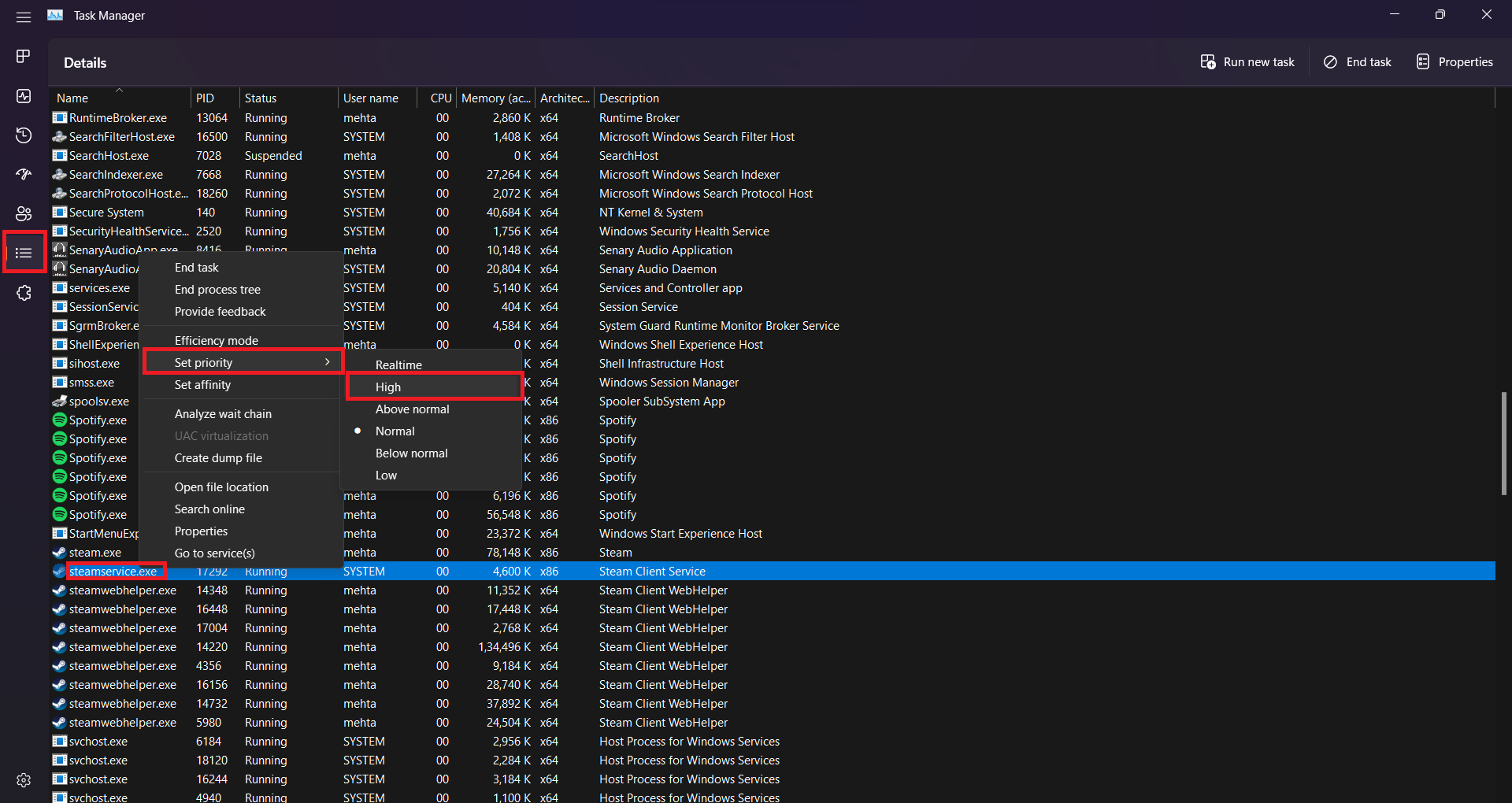
5. Set the Game to High Priority
Setting the game to High Priority helps Windows allocate more system resources to it.
Steps
-
Launch the game
-
Open Task Manager
-
Go to Details tab
-
Right-click WhereWindsMeet.exe
-
Choose Set Priority > High
6. Enable High-Performance Mode in Windows
Windows’ Balanced mode can limit CPU power, which impacts FPS.
How to Enable High-Performance Mode
-
Open Control Panel
-
Go to Power Options
-
Select High Performance
Laptop users should stay plugged in for better performance.
7. Disable Overlay Applications
Overlay tools reduce FPS and may cause micro-stuttering.
Disable Steam Overlay
-
Steam → Library
-
Right-click Where Winds Meet → Properties
-
Uncheck Enable Steam Overlay while in-game
Disable Discord Overlay
-
Discord → Settings
-
Game Overlay → OFF
Also disable overlays from
-
NVIDIA GeForce Experience
-
Xbox Game Bar
-
MSI Afterburner
8. Update Windows and DirectX
An outdated system can cause performance issues in modern games.
Update Windows
-
Press Win + I
-
Go to Update & Security
-
Click Check for updates
Update DirectX
-
Download the DirectX Web Installer from Microsoft
-
Install and restart your PC
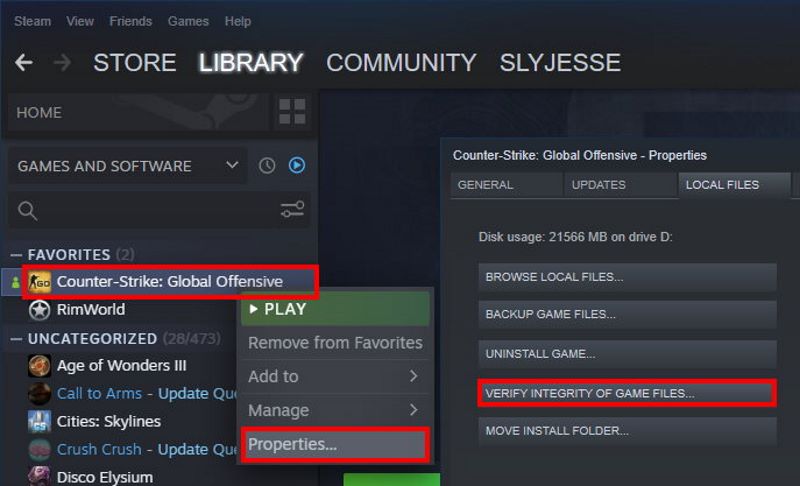
9. Verify Game Files
Corrupted files lead to FPS issues, freezing, and instability.
Steam
-
Steam → Library
-
Right-click Where Winds Meet
-
Properties → Local Files
-
Click Verify Integrity of Game Files
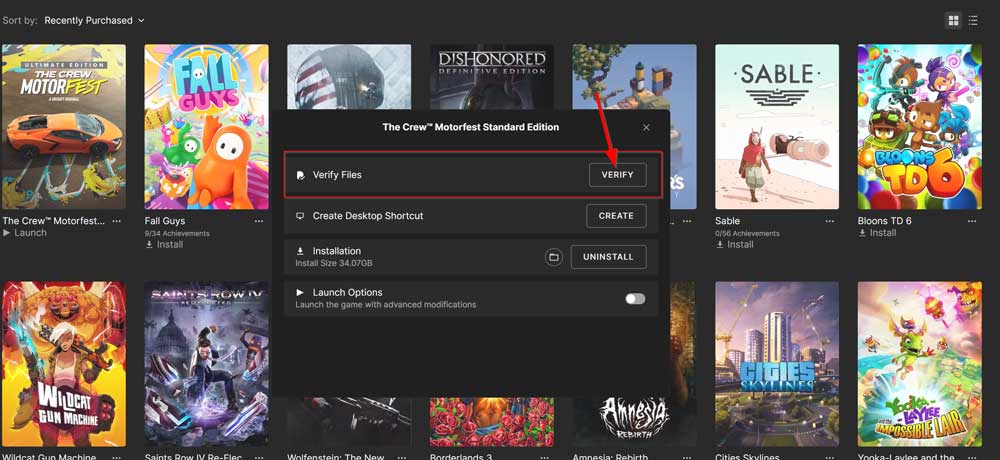
Epic Games
-
Epic Launcher → Library
-
Click three dots next to the game
-
Select Verify
10. Reinstall the Game
If performance issues persist, the installation may be corrupted.
How to Reinstall
-
Uninstall Where Winds Meet
-
Delete leftover folders from the installation directory
-
Restart your PC
-
Reinstall via Steam or Epic Games
Final Thoughts
Performance problems in Where Winds Meet can be annoying, but with the right tweaks—updating drivers, lowering graphics settings, disabling overlays, and optimizing Windows—you can significantly improve FPS and reduce stuttering.
Try each fix step by step, and your gaming experience should become much smoother.