
The Poco F3 is a rebadge of the Redmi K40 launched in China last month. The phone is powered by the Snapdragon 870 SoC and has a triple rear camera setup. It offers 5G connectivity support. In this tutorial, we will guide you on how to fix the black screen or screen of the death problem on Poco F3 and F3 GT.
Just like all the android phones, this phone also faces a few minor issues that can be resolved on your own. One of the main issues for all Android users is having a black screen of death problem. Don’t worry! This article will guide you to fix the Xiaomi Poco F3 and F3 GT black screen issues.
Also Read
The black screen is an error screen that is displayed by the operating system. Sometimes, it is very difficult to boot up the device after the black screen of death. If you have also run into the same situation, follow the below simple steps in order to fix the same.
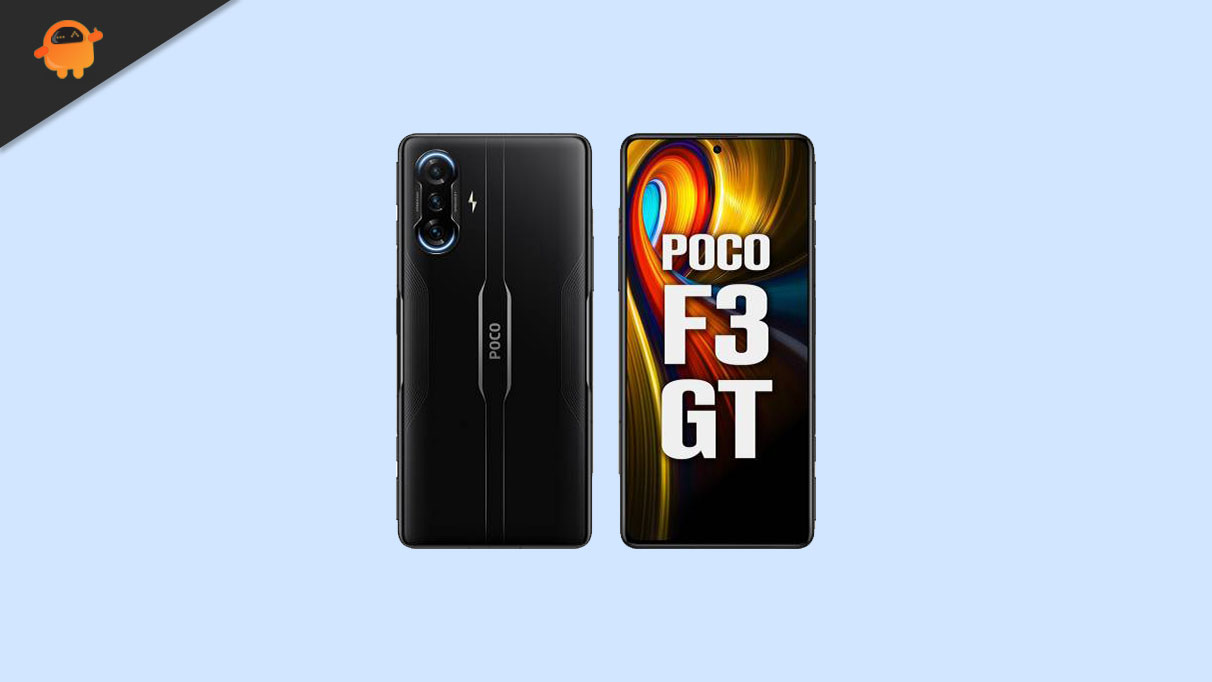
Xiaomi Poco F3 GT Device Overview:
The Poco F3 GT, launched in July 2021, was built with gaming clearly in mind. It features a 6.67-inch AMOLED display with 120Hz refresh rate and HDR10+, protected by Gorilla Glass 5 on both front and back. The standout hardware touch is the physical pop-up gaming triggers, which give it a console-like feel for shooters and racing games.
Powered by the MediaTek Dimensity 1200 (6nm) chipset with UFS 3.1 storage, the phone delivered flagship-level performance for its time, handling heavy gaming and multitasking smoothly under MIUI for POCO based on Android 11.
In daily use, the F3 GT still holds up decently thanks to its solid AMOLED panel, stereo speakers tuned by JBL, and reliable performance. The 64MP triple camera setup is serviceable for casual photography, though not a strong point compared to camera-focused phones.
Battery life is a highlight, with a 5065mAh battery and 67W fast charging that can fully charge the phone in around 42 minutes. Overall, the Poco F3 GT remains a well-remembered device for gamers, especially for those who value physical triggers, fast charging, and a premium gaming-oriented design over camera excellence.
Steps to fix the Poco F3 and F3 GT Black Screen issue
Here are a few steps to fix the black screen of death problem on the Poco F3 and F3 GT.
Reboot Your Device:
If your Poco F3 and F3 GT encounter a black screen of death, then it can be a reason due to software or hardware glitches. So to check how this occurs, the first simple troubleshooting guide is to soft reset your Poco F3 and F3 GT and confirm if the problem arises again. To soft reset, simply follow our guide.
Method 1: Soft Reset
- Press and hold the Power button for a few seconds
- You will see the screen with the option to power off
- Choose Power Off and your device will turn off
- Now press and hold the power button
- You can release it when the phone screen is on.
Method 2: Force Reboot
When your device is stuck and not able to perform any task then this guide can come in handy.
- Press and hold the power button for a few seconds until you see the phone starts restarting.
- That’s it! Your Poco F3 and F3 GT will reboot.
Wait for the Battery to Run Out and Re-charge Your Phone
If you are not able to reboot your device, then you may have to wait for the device’s battery to exhaust fully. When the battery is drained completely, you can recharge your device and turn it on. See if the problem now is resolved.
Wipe cache partition
To wipe the cache partition on your device, you must boot into recovery mode on Poco F3 and F3 GT. If you clear the cache partition, your device problem can be resolved. Recovery Mode on any Android device plays a crucial role in troubleshooting the device problem.
Perform a factory reset
If the problem still persists even after following up on the first step, then try to perform a factory reset on Poco F3 and F3 GT. Follow our tutorial
Instructions for Hard Reset via Settings
If this method, doesn’t work, you can try the next hard reset method via recovery mode.
- In your Poco F3 and F3 GT device, Go to the Settings app
- Now Additional settings menu
- Tap on Backup and reset
- Select Factory data reset
- Here you will find 5 different options to select
- To clear all the data, select Erase All Content and Settings which will wipe off all the data from your Poco F3 and F3 GT
- Enter your password if you have a password on your phone
- Once you enter the password, it will now show a confirmation to erase data, so hit erase data.
- That’s it! You have successfully performed a hard reset.
Instructions for Hard Factory Reset via Recovery
Want to hard reset your Poco F3 and F3 GT? then, enter the recovery mode first.
- First of all, Turn off your Poco F3 and F3 GT.
- Now Press and hold the Volume Up key + Power Key on your Poco F3 and F3 GT device simultaneously for a while
- Once you see the Xiaomi logo, you can release the button.
- Your phone has entered recovery mode, now you can select the language
- Now your device will enter the stock recovery mode
- You can select Wipe Data by just tapping on it
- Now select Wipe/Data to confirm and enter the verification code
- That’s it! Confirm and done!
I hope this guide was useful to hard reset your Poco F3 and F3 GT.
Update software
If your device still has the black screen issue even after resetting your device, then you can try to check for a new software update or manually upgrade to new stock firmware on Poco F3 and F3 GT. It was announced that a software update will debug and resolve the issue users are facing.
This should work! By following the above steps the user should not get this situation henceforth. In case you receive the same issue again, it is better to visit the nearest store and inform them about the issue. Make sure you also let him know that you have followed the above steps so that the showroom staff can think of some new idea.