Astro Bot on a Windows PC with DLSS and frame generation sounds too good to be true. Since November 2026, an unofficial fan project called AstroHybrid has made it possible. You have probably also seen the headline figure of “128 FPS”. Before you get excited, here’s the catch: that number includes AI-generated frames, so the game itself is not running at 128 frames per second.
This guide covers what AstroHybrid is and the files you need. It then walks through the full setup and explains the performance you can realistically expect.
What Is AstroHybrid?
AstroHybrid is a personal research project published on GitHub. It is not an official PC release from Sony or Team ASOBI, and its developer says it isn’t affiliated with or endorsed by them.
It also isn’t a traditional emulator. According to the project’s README, AstroHybrid uses two existing projects:
- AnyPS5 relinks the game’s existing x86-64 code into a Windows executable,
AstroBot.exe.
- KytyPS5 provides a GPU layer (
kyty_gpu.dll) that translates the PS5’s graphics work to Vulkan.
It borrows technology from an emulator, but it doesn’t emulate the whole console. On top of that, it adds NVIDIA DLSS Super Resolution, DLSS Frame Generation, Multi Frame Generation and Reflex. Another KytyPS5-based Astro Bot build has also been shown running with DLSS on an RTX 4080, which shows how quickly this scene is moving.
Requirements
Here’s what the AstroHybrid README lists:
- Operating system: Windows 10 or Windows 11, 64-bit.
- Graphics: a Vulkan-capable graphics card.
- Storage: about 1 GB free for the download and extraction. The setup screen recommends roughly 2–3 GB of free space, so leave some headroom.
- Game files: your own extracted, decrypted dump of Astro Bot. The developer tested version 01.019.000 (title ID PPSA21567). Other versions may work but haven’t been tested.
- Controller: DualSense, DualShock 4, Xbox, Switch Pro and generic pads are supported.
Two important notes. First, this is a PS5 game, so a PS4 game folder won’t work, and you can’t extract it through a Switch emulator such as Ryujinx. Second, the download contains no game files. You need your own legally obtained copy.
Your dump folder must contain eboot.bin, sce_module and sce_sys. If you start from your own game package, extract it with your preferred package extraction tool first. That gives you a folder named after the title ID, such as PPSA21567-app.
Step 1: Download AstroHybrid
- Open the AstroHybrid Releases page on GitHub.
- Open the latest release and expand Assets.
- Download the AstroBotPC-AstroHybrid ZIP. Skip the source-code archives.
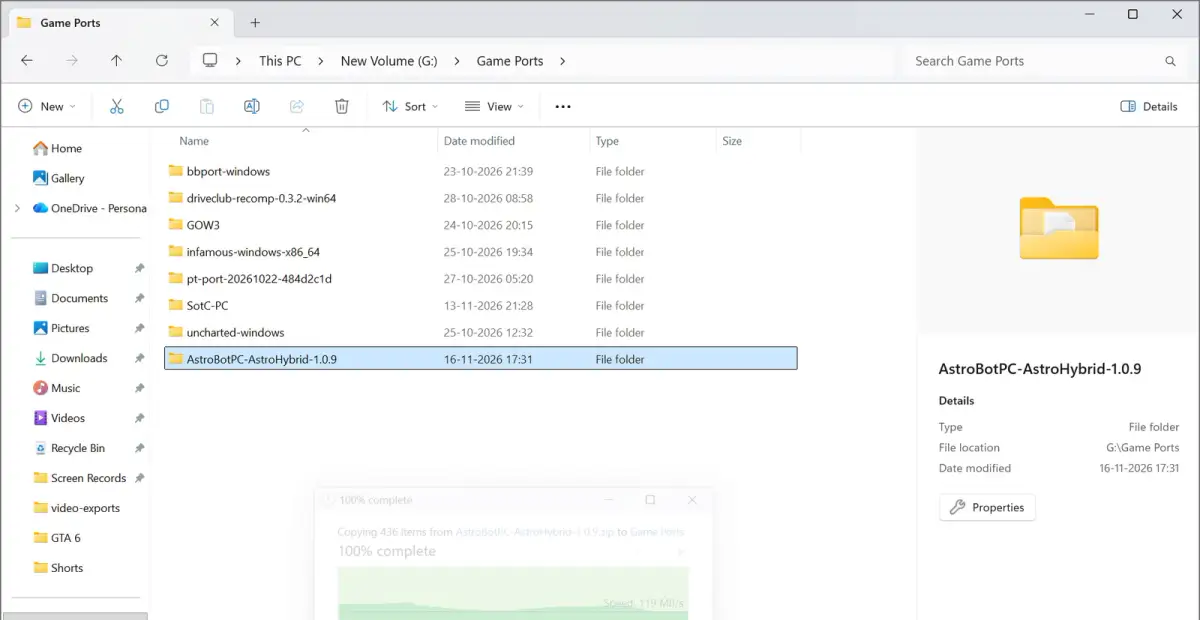
- Right-click the ZIP and select Extract All. Choose a folder on a drive with enough space, for example a folder inside your PC Games directory.
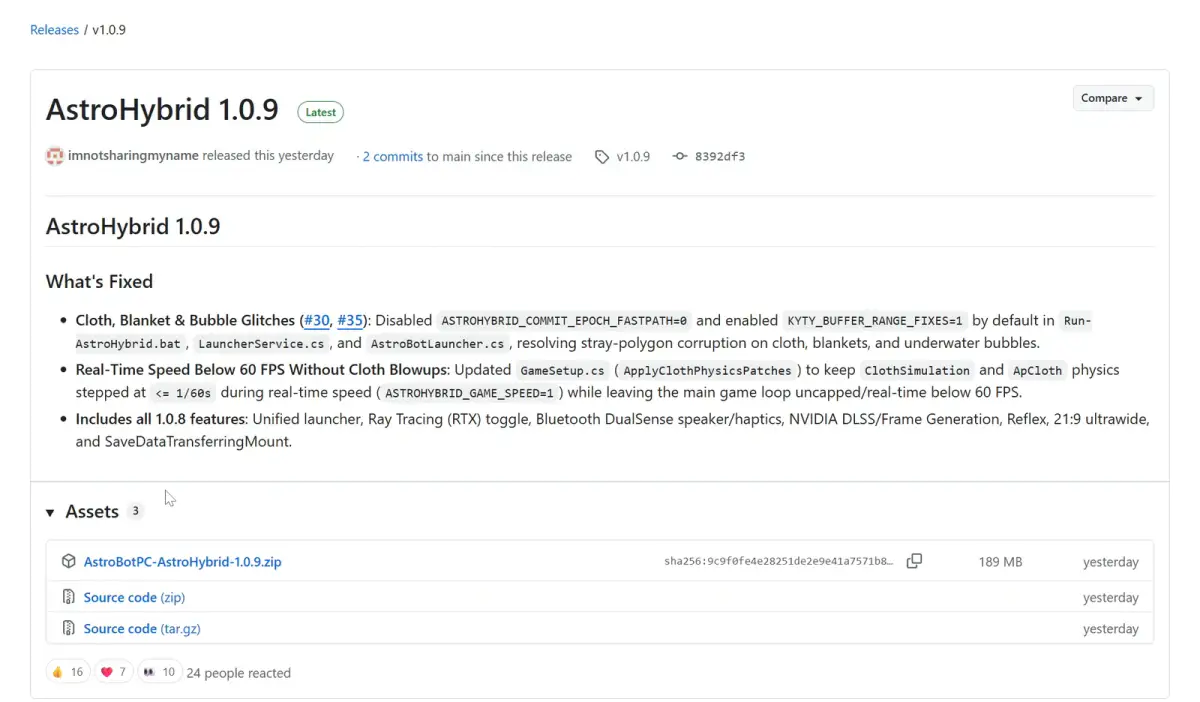
When we recorded our video, the latest release was AstroHybrid 1.0.9. Its notes list fixes for graphical glitches on cloth, blankets and underwater bubbles, plus an adjustment to cloth physics when the game runs below 60 FPS. The project moves quickly, so read the newest release notes before you start. The setup steps or known fixes may have changed.
Step 2: Run the Setup and Install
- Open the extracted folder and launch AstroHybrid.exe.
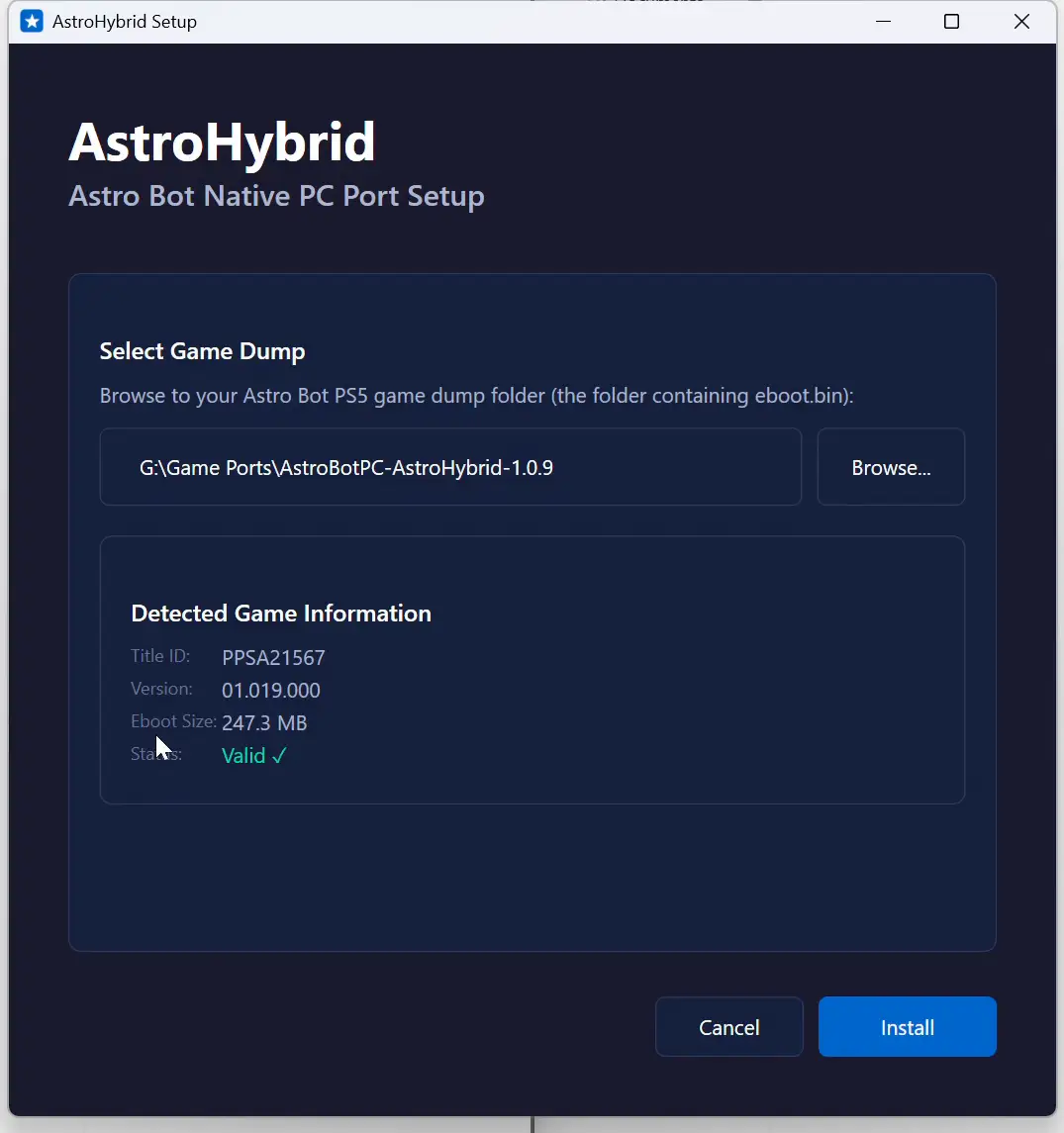
- Under Select Game Dump, click Browse and pick the folder containing
eboot.bin, sce_module and sce_sys. You can also paste the path and click Check folder.
- Check the Detected Game Information panel. It should show the title ID, version 01.019.000 and a valid status.
- Click Install and wait for the conversion to finish. The developer estimates about two minutes, but your PC may take longer. Setup only reads your dump and doesn’t modify it.
Step 3: Review Settings and Press Play
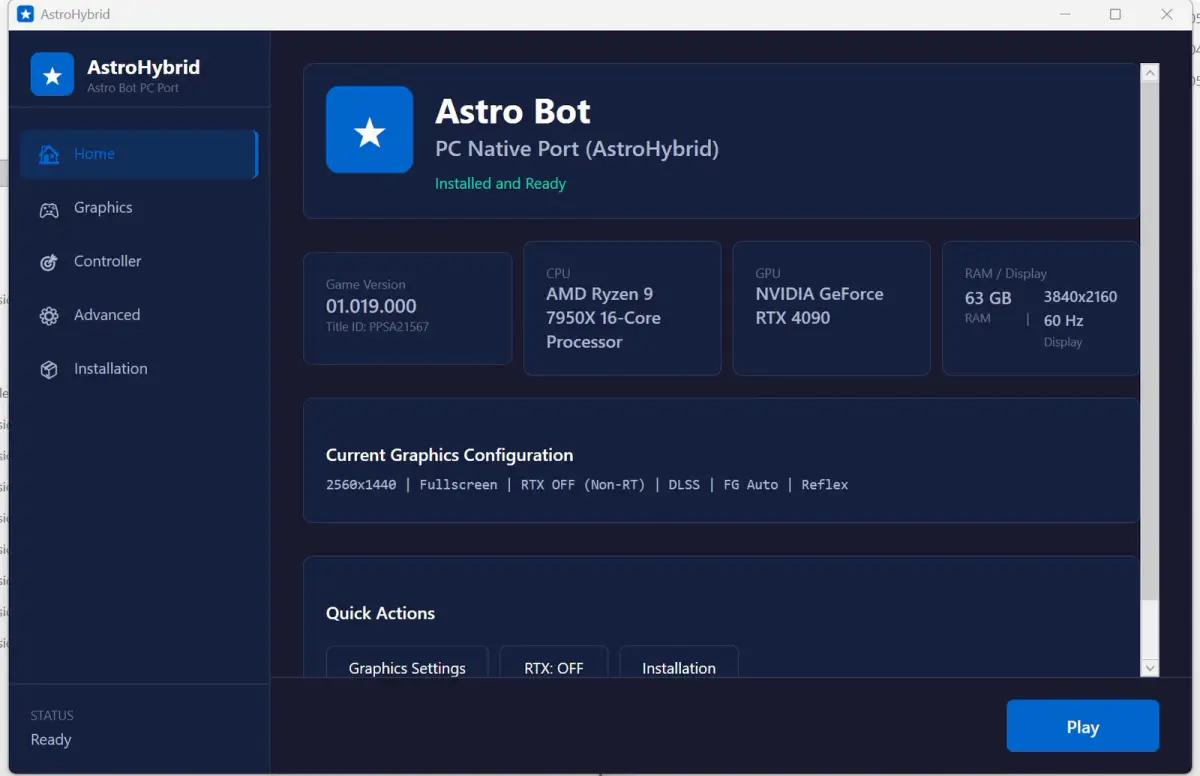
When setup finishes, the AstroHybrid launcher opens. Review the Graphics and Controller pages, then press Play.
For the first launch, test the game with the initial configuration before you change anything. Check three things:
- The picture appears correctly.
- Your controller responds.
- The game reaches gameplay.
After that, change one setting at a time so it’s easy to see what helps and what causes a problem. The README also notes that, with no FPS limit and frame generation off, the first loading screen can stay black for about 35 seconds. This is not a hang.
DLSS and Frame Generation: What You Need
According to the project README, NVIDIA feature support breaks down like this:
- DLSS Super Resolution and Reflex: any NVIDIA RTX graphics card.
- 2x Frame Generation: RTX 40 series or newer.
- 3x and 4x Multi Frame Generation: RTX 50 series only.
The NVIDIA runtime files are a separate requirement and aren’t included in the download. Follow the project’s instructions to get them directly from NVIDIA. Keep the game window focused when testing frame generation, because it only runs while the window is in focus. Don’t combine it with NVIDIA Smooth Motion.
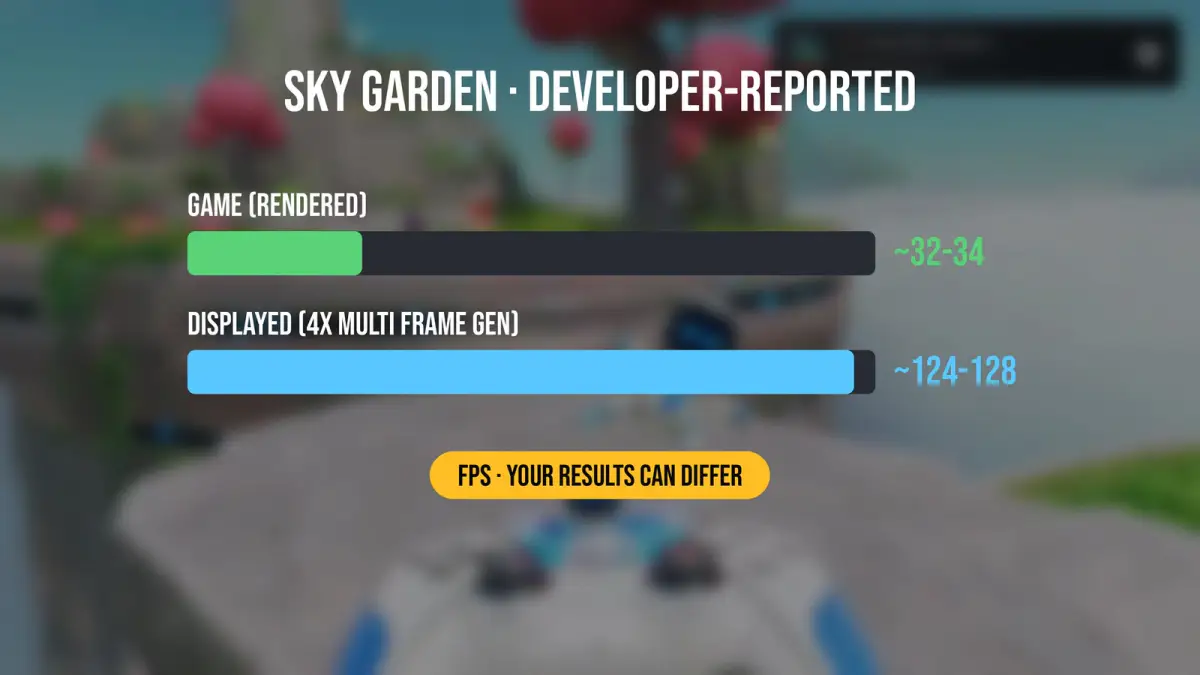
The developer tested on a Ryzen 5 5500, an RTX 5060 with 8 GB of video memory and 32 GB of system memory. In Sky Garden, the heaviest area they found, the game reportedly ran at around 32–34 FPS uncapped.
With 4x Multi Frame Generation, the displayed output reached about 124–128 FPS, and 2x showed about 63 FPS. Most of those extra frames are generated, not rendered by the game. The README also explains that heavy areas are CPU-limited, so lowering the resolution doesn’t raise the frame rate much. That makes frame generation the main smoothing tool.
Keep in mind that these are developer-reported results, and your numbers will depend on your hardware and background load. Generated frames also don’t feel as responsive as an equally high native frame rate. The developer notes that input latency with frame generation hasn’t been measured yet.
Tips Before You Play
- Keep your original game dump. AstroHybrid reads from it, and you may need it again for updates.
- Back up your saves before updating to a newer release.
- Laptop with two GPUs? Leave the graphics card set to automatic. Picking a non-RTX chip disables DLSS, frame generation and Reflex.
- Known gaps: motion controls don’t work yet on pads without motion sensors, such as Xbox controllers.
- Something wrong? Check the project’s Issues page and describe exactly what happened.
Final Thoughts
AstroHybrid is an impressive experiment. It takes Astro Bot’s own code, turns it into a Windows program and adds modern NVIDIA features on top. It’s still an experimental fan project, though, so expect rough edges, and treat the 128 FPS headline as a frame generation figure rather than the game’s native frame rate.
Would you try this unofficial Astro Bot PC project, or wait for an official release? Let us know in the comments.