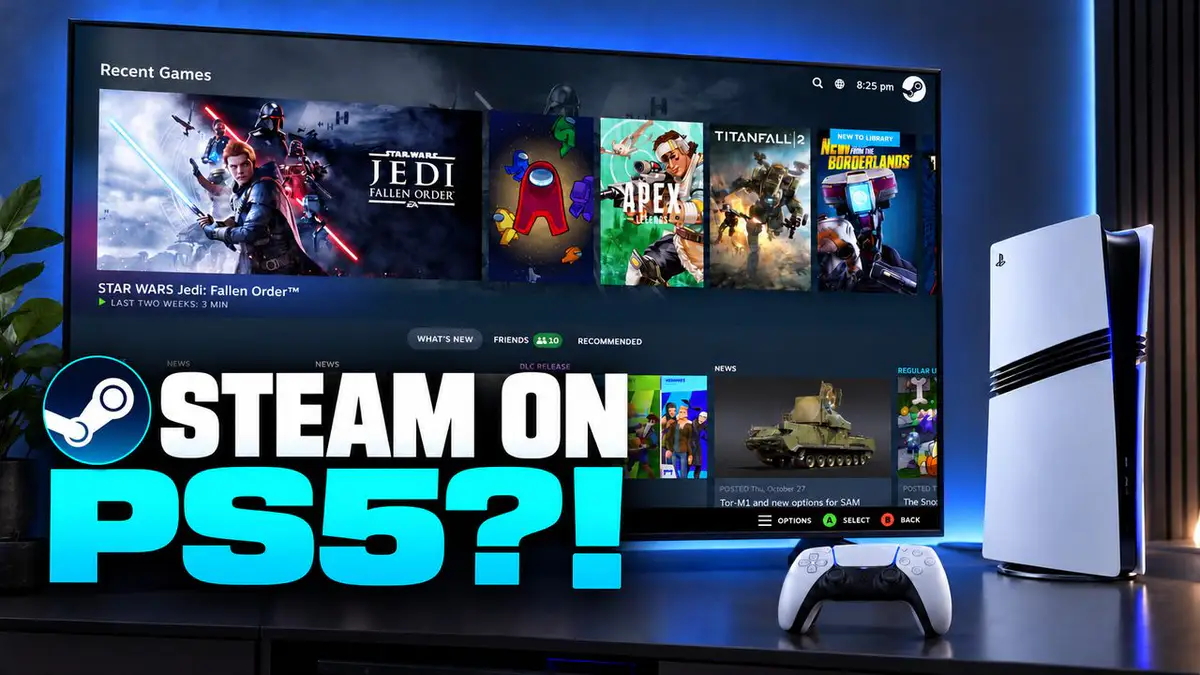
Picture this: you power on your PlayStation 5, pick up the DualSense, and what loads is your Steam library instead of the usual PS5 dashboard. A community project called PS5 Bazzite Deck makes that possible on supported consoles by booting Bazzite Linux and Steam’s Gaming Mode on the PS5.
What you get is a controller-first interface that feels a lot like a Steam Deck, with your PC games running through Steam. It is an unofficial setup, though, and it needs a compatible firmware, a jailbreak, and a Linux loader to work. Getting it running also does not mean every game in your library will play nicely.
This guide walks through preparing the external drive, booting Bazzite, getting through the first-time setup, and dealing with the black screens that tend to show up along the way.
Before you start
Running Linux on a PS5 relies on a jailbreak and console exploits. It can trip anti-cheat, risk a PSN account or console ban, and leave the console in a bad state if something goes wrong during the process. Only do this on a console you own and are willing to experiment with, and keep anything important backed up first.
What is PS5 Bazzite Deck?
Bazzite is a Linux operating system built for gaming. PS5 Bazzite Deck adapts it for supported PlayStation 5 consoles so you can launch Steam Gaming Mode and drop to a Linux desktop when you need it.
For the setup in this guide, the OS runs from an external USB drive or SSD through a compatible PS5 Linux loader. It is not a Sony system update, and it is not something you install from the PlayStation Store.
Steam’s Proton compatibility layer lets a lot of Windows games run on Linux. Whether a specific game works still comes down to the game itself, its launcher, any anti-cheat it uses, and what this community build currently handles. Treat it as an experimental way to put your PS5 hardware to use for Linux gaming rather than a promise that your whole PC library will run.
What you need before you begin
Have the following ready before you start:
- A PS5 running firmware that the Linux loader supports.
- A compatible jailbreak and loader setup.
- A USB drive with at least 32 GB of space. A larger external SSD is better for load times and leaves room for games.
- A computer to download, extract, and flash the image.
- A USB keyboard for the first-time setup.
- A DualSense controller.
- An internet connection and a Steam account.
Back up the drive first
Flashing the image wipes the destination drive completely. Copy anything you want to keep off it before you continue.
One thing worth stressing: check the loader’s current compatibility list before you touch your console’s firmware. Support is tied to specific firmware versions, and a newer firmware will not always work with the same setup. As of late 2026, the PS5 Linux loaders target a fixed set of firmware versions and stop below Sony’s most recent releases, so the version your console is already on matters a great deal. Do not update or downgrade on the assumption that it will work.
This walkthrough covers preparing and starting Bazzite once you already have a supported console configuration. For the jailbreak and loader install itself, follow the loader’s own documentation.
Step 1: Download the PS5 Bazzite Deck image
Open the PS5 Bazzite Deck GitHub page, then head to its Releases section.
Pick the release marked Latest. A higher version number marked Pre-release is a testing build, so avoid it unless you know what you are getting into.
Under the release assets, download every numbered archive file that belongs to that release. The filenames look something like this:
ps5-bazzite-deck-vX.Y.Z.img.7z.001
The other parts end in .002, .003, and so on. Save all of them in the same folder. Do not mix archives from different releases, and do not grab only the first part.
On Windows, install 7-Zip if you do not already have it.
- Open the folder with all the downloaded archive parts.
- Find the file ending in .001.
- Open it with 7-Zip and extract the contents.
- Let the extraction finish completely.
You only start extraction from the first part. 7-Zip reads the rest of the numbered files on its own. The file you end up with should be named ps5-bazzite-deck.img.
On macOS, the project recommends Keka. On Linux, you can extract it with 7z x. Either way, keep enough free space for both the archive parts and the extracted image.
Step 3: Flash the image to your external drive
Connect the USB drive or external SSD to your computer, then open Rufus.
- Under Device, select the destination drive.
- Double-check its name and capacity.
- Select the extracted .img file.
- Click Start.
- Confirm the erase warning once you are sure of the destination.
- Wait for the flash to finish.
- Safely eject the drive.
Pick the right drive
Choosing the wrong drive here will erase whatever is on it. Confirm the device name and size before you hit Start.
Step 4: Prepare your PS5 settings
Before you boot Linux, change a couple of settings in the normal PS5 interface.
Keep USB power on in Rest Mode
Go to Settings > System > Power Saving > Features Available in Rest Mode > Supply Power to USB Ports and set it to Always.
Disable HDMI Device Link
Go to Settings > System > HDMI > Enable HDMI Device Link and turn it off. The project warns that HDMI Device Link can cause a black screen during this setup.
While you are here, make sure etaHEN and kstuff are off when you use the Linux loader. The project lists both as incompatible with it.
Step 5: Connect the drive to a fast USB port
The port you pick affects boot time, game installs, and loading speeds. Use the faster port for the boot drive and a slower one for the keyboard or controller.
| PS5 model |
Recommended connection for the boot drive |
| Original PS5 |
Either rear USB-A port or the front USB-C port |
| PS5 Slim |
Either rear USB-A port |
On the original PS5, skip the slower front USB-A port for the boot drive. On the Slim, the rear USB-A ports are the straightforward choice.
Step 6: Start the Linux loader
Follow the instructions for your compatible jailbreak and PS5 Linux loader. During the boot sequence the project describes:
- The PS5 enters Rest Mode.
- Wait until the orange indicator stops blinking.
- Press the console’s power button.
- A white indicator means Linux is starting.
The first boot can take several minutes, and the screen may stay black for part of it. Do not pull the drive or cut the power just because nothing has appeared yet.
Step 7: Finish the first boot
Once the setup screen shows up, connect to your network and let Steam run its first round of updates.
After you join Wi-Fi, you might hit a blank screen with a blinking cursor. It can look frozen even though Steam is still updating in the background. Give it time. The project specifically warns that interrupting this stage can break the setup.
When Steam is ready, sign in to your account. Your library should then show up in Steam Gaming Mode.
Step 8: Change the default password
The image ships with the default password ps5, and SSH is on. Change the password once the initial setup is done.
- Switch to the desktop.
- Open a terminal.
- Type
passwd and press Enter.
- Follow the prompts to enter the current password and set a new one.
The terminal will not show characters while you type a password, which is normal. Pick something unique, since SSH means the console is reachable over your network.
Step 9: Set up your display
The first startup runs at 1080p 60 Hz. In Steam Gaming Mode, open Settings > Display and choose a resolution and refresh rate that your console, display, and cable can all handle.
The project documents 4K 60 Hz support, while higher refresh rates depend on your console’s HDMI hardware and the display you have plugged in. Check the current hardware support table before you count on a particular mode. Keep in mind that display refresh rate and game frame rate are two different things: a 120 Hz output does not make a game run at 120 FPS on its own.
The setup instructions also suggest Full RGB range in Gaming Mode and on the desktop. Match that to your TV or monitor’s black-level setting so colours do not look washed out or lose shadow detail.
Step 10: Connect your controller and test a game
Connect the DualSense over USB, or pair it through Bluetooth. Then open your Steam library and install a game with solid Proton support. Let any first-run setup finish before you launch it.
During that first session, check how the controller buttons and sticks behave in menus, whether audio works, how the frame rate holds up in actual gameplay, and whether saving and loading progress works. Also watch for graphical glitches and any stutter when the game loads a new area.
Start with one game before you pull down a big chunk of your library. A clean launch tells you something, but a longer play session gives you a far better read on how well a game actually runs.
Will every Steam game work on PS5?
No. Having Steam does not mean every PC game will run. Some play well, while others hit launcher errors, graphical problems, crashes, or anti-cheat blocks. Performance also shifts with the game, your settings, the storage device, and the version of the project you are on. Just because a title runs on another Linux gaming device does not guarantee the same result on this PS5 build.
Troubleshooting common problems
Black screen during the first boot
Give the first boot several minutes. Confirm that HDMI Device Link is off and that you followed the loader’s startup sequence exactly. If the screen stays blank, check the project’s current troubleshooting notes instead of repeatedly interrupting the boot.
Blinking cursor after connecting to Wi-Fi
Steam is most likely updating in the background. Wait for it to finish before you assume the install has failed.
Make sure every numbered part downloaded fully and that they all sit in the same folder. Confirm they belong to the same release, then start extraction from the .001 file.
Booting and loading are very slow
Check which USB port the boot drive is in. A faster port and an external SSD both help with storage speed.
A particular game will not launch
Look up that game’s Proton compatibility and any known launcher or anti-cheat limits. One game misbehaving does not mean your Bazzite install is broken.
Problems after updating
Follow the instructions attached to the specific release. Not every update uses the same install process. When you ask for help, include your console model, firmware, Bazzite release, storage device, and the exact point where the problem happens.
Frequently Asked Questions
Is running Bazzite on a PS5 safe and legal to do?
It depends on where you live and how you use it. The setup relies on a jailbreak and console exploits, which carries real risk: anti-cheat trips, possible PSN bans, and the chance of leaving the console in a bad state if the process goes wrong. Do it only on a console you own and are prepared to experiment with.
Does this void my PS5 warranty?
Jailbreaking and running unofficial software is not something Sony supports, so you should assume it can affect warranty or service eligibility. Weigh that before you start.
Do I need a specific PS5 firmware?
Yes. PS5 Linux loaders only work on certain firmware versions and do not support Sony’s newest releases. Check the loader’s current compatibility list and confirm your console’s firmware before doing anything, since you usually cannot freely move between firmware versions.
Does it work on the PS5 Pro?
The setup in this guide targets the original PS5 and some Slim models. The PS5 Pro is not listed, so check the project’s supported hardware before assuming it will run on one.
Can I still use my PS5 normally afterwards?
Bazzite here boots from an external drive rather than replacing the console software, so the standard PS5 system stays in place. Even so, treat anything involving a jailbreak as experimental and back up anything you care about.
Will my whole Steam library run?
No guarantee. Many games run through Proton, but launchers, anti-cheat, and this community build all affect what works. Test one game at a time rather than expecting everything to run.
Final thoughts
PS5 Bazzite Deck is an unusual way to put PlayStation hardware to work for PC gaming. With a supported console, a prepared external drive, and some patience during that first boot, you can reach Steam Gaming Mode and start testing your library. Keep the project’s release notes handy, because compatibility and setup requirements can shift from one build to the next.