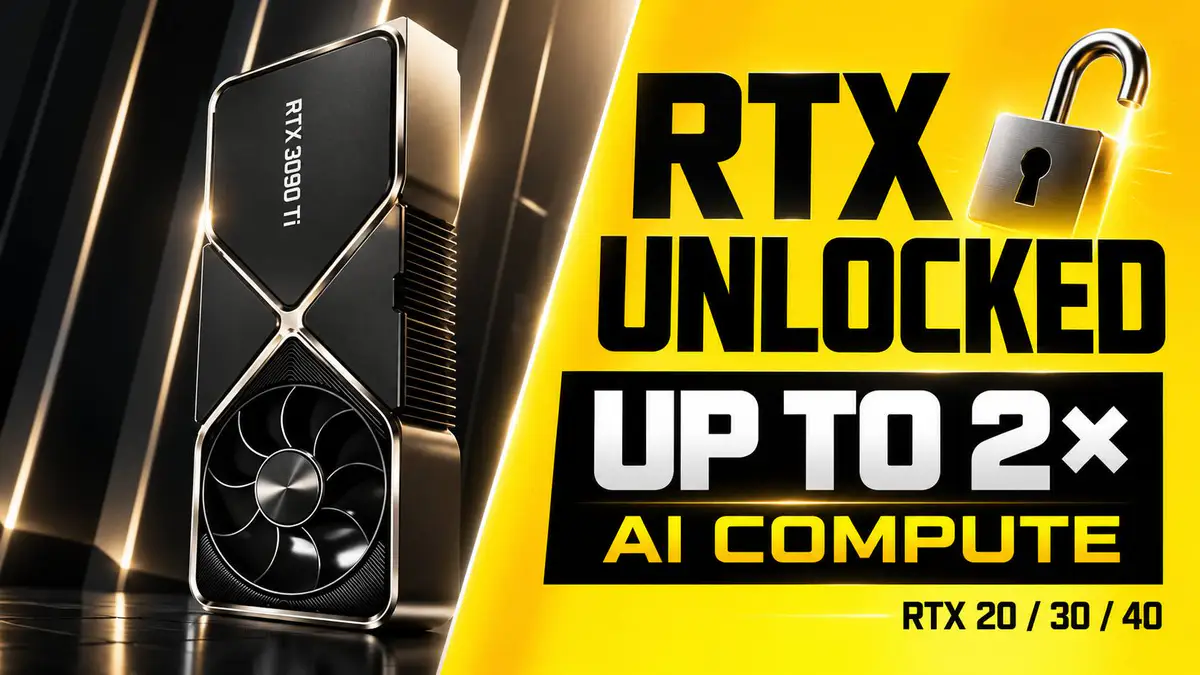
What if your RTX graphics card could finish certain AI tasks faster without buying any new hardware? A free, open-source project called gpu-unlock claims exactly that, and the headline number is big: up to roughly double the Tensor Core throughput on some cards.
Before you picture double the frame rate in your favourite game, here is the catch. This unlock only speeds up specific AI calculations. It is not a general gaming boost. But if you run AI models or generate images locally on your own PC, it is worth understanding. Let’s break down what the project actually does and how to set it up.
What is actually being unlocked?
RTX cards have Tensor Cores, which are specialised units for matrix math, the grid-of-numbers multiplication that AI software leans on heavily. On its GeForce cards, NVIDIA caps the speed of certain tensor operations, specifically FP16, BF16, and TF32 math that accumulates in FP32, running them at half the rate the silicon is capable of. This is a product-segmentation limit, not a hardware one.
The gpu-unlock project is a Linux kernel module that removes that cap. It runs at boot, before the NVIDIA driver loads, and changes a low-level configuration so the affected operations run at full rate. According to the project, there is no patched driver, no VBIOS flash, and no soldering involved, and nothing to redo when NVIDIA ships a new driver.
The important word throughout is “certain.” It does not make the whole card twice as fast.
The project publishes peak throughput figures for a dense matrix multiply (BF16 input, FP32 accumulation) at stock power limits. These are the best-case synthetic numbers:
| GPU |
Before |
After |
| RTX 3060 12GB |
27 TFLOPS |
51 TFLOPS |
| RTX 3070 |
40 TFLOPS |
72 TFLOPS |
| RTX 3080 10GB |
65 TFLOPS |
113 TFLOPS |
| RTX 3090 |
75 TFLOPS |
125 TFLOPS |
| RTX 4070 Ti |
81 TFLOPS |
150 TFLOPS |
| RTX 4080 |
104 TFLOPS |
193 TFLOPS |
| RTX 4090 |
165 TFLOPS |
329 TFLOPS |
That is a large jump, but it measures one kind of calculation, not a whole application. Real workloads gain less because they also have to move data and manage memory, steps this unlock does not touch. The project’s own real-world figures look more like this:
- LLM prompt processing (prefill): roughly 25% to 55% faster
- Time to first token: around 25% to 30% lower
- LoRA and fine-tuning in BF16: roughly 25% to 50% faster
- Local image generation (FP16/BF16): roughly 30% to 55% faster
- Video generation: around 15% to 20% faster
- Token generation (memory bound), INT8/FP8/INT4, FP32 CUDA, and gaming: no change
Think of it like doubling the speed of one station on a factory line. It helps, but only until a different station becomes the bottleneck. That is why twice the throughput in a benchmark does not mean an image generates in half the time, or a chatbot answers twice as fast. The model may finish reading a long prompt sooner without getting any quicker at writing the reply, since that part is limited by memory speed.
And if you mostly use an AI service that runs on someone else’s servers, changing your own GPU does nothing for their hardware.
Which GPUs are supported?
Support depends on the architecture, and the project labels each generation differently:
- RTX 30 series (Ampere): stable. RTX 3050 through 3090 Ti, plus the RTX 3070 and 3080 Laptop GPUs.
- RTX 40 series (Ada Lovelace): experimental. RTX 4060 through 4090, plus some 40-series laptop chips.
- RTX 20 series (Turing): experimental. RTX 2060 through 2080 Ti and Titan RTX.
- RTX 50 series (Blackwell): not supported, and the author says it is unlikely to be added.
An RTX badge does not guarantee compatibility, so check your exact model against the project’s list before trying anything.
One point worth clearing up: some coverage mentioned an RTX 2080 Ti with 22GB of memory. That extra memory came from a separate physical modification. This software unlock does not add VRAM. You keep whatever memory your card already has, and if a model does not fit in that memory, extra compute throughput will not make it fit.
The projects
The work is spread across a main project and architecture-specific efforts:
Always follow the documentation in the specific repo for your card, since the experimental ones can behave differently.
Requirements
- A supported RTX 20, 30, or 40 series GPU.
- Linux. The main project is Linux only. A third-party Windows port exists, but it is not an official or universal installer, so treat it with caution.
- Kernel headers installed, so the module can build for your kernel.
- The usual build dependencies, which the project’s make targets can install for you.
- The NVIDIA driver, which is used only to extract firmware, not as a runtime dependency.
How to install the GPU-Unlock mod (Linux)
Before you start
This is an enthusiast modification, not a routine update. It reaches deep into the system and the RTX 20 and 40 support is experimental. Read your card’s project documentation fully, understand how to undo the change, and proceed at your own risk. GetDroidTips is not responsible for any instability or damage.
The steps below follow the main Zagitta/gpu-unlock project. The Ada and Turing forks work the same way with their own repos.
- Clone the project. Download the repository for your GPU from the link above to your Linux machine.
- Build and install the module. From inside the project folder, run
make install. It detects your distribution, or you can use a specific target such as make install-arch, make install-deb, or make install-rpm.
- Add the kernel parameter. Append
gpu_unlock.targets=all to your kernel command line, then regenerate your boot entries. The project documents how to do this for GRUB, Fedora/RHEL, systemd-boot, and UKI setups. You can also target a specific GPU by its PCI address instead of all.
- Reboot. The module loads from the initramfs before the NVIDIA driver, so the unlock is applied early in boot.
- Verify it worked. Check the kernel log with
journalctl -k -b | grep gpu_unlock and confirm the device with lspci -nnk. You can also run a quick before-and-after tensor benchmark using the same model, settings, and batch size to measure the real difference.
How to undo it
To turn the unlock off, remove the gpu_unlock.targets kernel parameter and regenerate your boot entries, or uninstall the module packages. Because the change is applied at boot rather than written to firmware, reverting is straightforward.
Important notes and warnings
- On laptops, the unlock only holds while the dedicated GPU stays powered. Many laptops cut power to the dGPU when it is idle, which resets the unlock.
- Suspend to RAM also resets it, though the module re-applies it on resume. Hibernation is not covered.
- More compute can mean slightly higher GPU temperatures, but standard throttling and power management stay in place.
- The developer warns about fake installers, websites, and crypto schemes claiming to be linked to the project. A random download promising to “double your RTX performance” deserves serious scrutiny. Stick to the official repositories.
A note on the numbers
The figures in this article are published project and community reports. We have not independently reproduced them on GetDroidTips, so treat them as something worth investigating rather than a guaranteed result for your specific setup.
FAQ
No. The project explicitly lists no gaming improvement. Game performance depends on far more than the specific tensor operations this unlock affects. If you only game, there is no reason to touch this.
Does it unlock new DLSS features on older cards?
No. There is no evidence that it gives unsupported cards access to newer DLSS features. It only changes the throughput of certain tensor math.
Does it work on Windows?
The main project is Linux only. A third-party Windows port exists but is not official, and the developer warns about unsafe installers circulating online.
Is it permanent, and can it brick my card?
It is not permanent. The change is applied at boot and reverts when you remove the kernel parameter or lose GPU power. There is no VBIOS flash, so the risk is lower than firmware mods, but an unsupported setup can still cause boot or stability problems, which is why the recovery steps matter.
Will it add VRAM?
No. It only affects compute throughput. Your card keeps the memory it already has.
Who is this actually for?
People running suitable AI workloads locally, such as image generation, fine-tuning, or LLM prefill on a supported RTX 30 series card. For everyone else, especially gamers, it offers little.
Final thoughts
The interesting takeaway is that existing hardware may have more usable AI performance than owners expected, at least for specific workloads. For someone working with local AI, this could keep an older RTX card useful for longer. For a gamer hoping for free frames, it means far less than the headline suggests.
Do you use your RTX card for local AI, image generation, or mainly gaming? Tell us your GPU and workload in the comments.