
If you’re using a Xiaomi Mi A3 and want to breathe new life into your device, installing an Android 16-based custom ROM is a solid move. Google recently released Android 16 for Pixel devices, and developers have already ported unofficial AOSP builds to older phones like the Xiaomi Mi A3. In this guide, you’ll learn how to safely install Android 16 on Xiaomi Mi A3 and enjoy its latest features.
Also Read
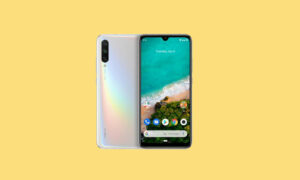
Xiaomi Mi A3 Overview:
The Mi A3 features a 6.1-inch HD+ OLED display with 720×1560 pixels resolution having a 19.5:9 aspect ratio. It’s protected by Corning Gorilla Glass 5 with a dot drop notch. This device is powered by a 2.0GHz octa-core Qualcomm Snapdragon 665 chipset with 4GB of RAM. The storage is 64GB inbuilt which can be expandable up to 256GB via a MicroSD card.
The device runs on the Android 9.0 Pie Stock UI out-of-the-box. It packs a non-removable Li-Po 4,030 mAh battery with Qualcomm Quick Charge 3.0 fast charging support. Most importantly, it has an in-display Fingerprint sensor and AI Face Unlock feature.
Xiaomi Mi A-series devices always offer great camera quality like any affordable flagship killer camera. This device packs a 48MP primary camera (f/1.79), a secondary 8MP camera (f/2.2), and a third 2MP camera. The rear camera setup has autofocus and an LED flash as well. While the front features a 32MP selfie camera with an f/2.0 aperture lens along with AI modes.
In terms of the connectivity options, it includes Wi-Fi 802.11 a/b/g/n/ac, GPS, Bluetooth 5.0, IR Blaster, USB Type-C port, FM Radio, 3G/4G LTE, etc. Sensors on the phone include an accelerometer, ambient light, gyro, proximity, and fingerprint sensor. The Xiaomi Mi A3 measures 153.48×71.85×8.50 mm and weighs 173.80 grams. It’s available in three colors such as Not Just Blue, More Than White, and Kind of Gray color.
Android 16 Features:
Android 16 introduces Material 3 Expressive, a refined evolution of Google’s design language for smartphones and tablets. While it doesn’t completely reinvent the interface, it represents one of the most noticeable user-facing changes in the OS. Rather than a dramatic visual overhaul, Material 3 Expressive enhances the foundation laid by Material Design 3 by introducing smoother, more dynamic animations, larger touch targets, and bolder typography.
This update arrives at a perfect moment. Material Design 3, first introduced with Android 13, had begun to feel dated. Material 3 Expressive breathes new life into the interface while preserving the familiar look and feel users have grown comfortable with. Instead of overhyping the changes, Google’s own animations showcase the polish and fluidity of this next step in Android design.
Android 16 introduces a wealth of new features, system optimizations, and UI refinements. Some of the highlights include:
- Live Notifications: Track real-time activities like deliveries or ride status with persistent, interactive notifications.
- Low-Light Camera Enhancements: Improved software-based night photography.
- Pro-Grade Media Support: Includes advanced codecs and battery-efficient audio processing.
- Desktop Mode for External Displays: Better support for multi-window UI on monitors and tablets.
- Accessibility Upgrades: Features like outlined text and improved input customization.
- Performance Boost: Enhanced power management and reduced background CPU usage.
These updates aim to improve user experience across different types of devices, including foldables, tablets, and standard phones.
Although Android 16 is rolling out first to Pixel devices, many brands like Xiaomi, OnePlus, Samsung, Realme, and others will follow soon. If you’re impatient, a custom ROM is the best way to get Android 16 today.
What Works & Known Bugs:
What’s working?
Everything seems to be working fine.
Known issues?
If you spot any bugs, report them along with proper logs to the developer.
Before You Begin: Requirements:
1. Backup Your Data:
Always back up your device before flashing any ROM. This prevents data loss if anything goes wrong. Backup guide here.
2. Battery Level:
Charge your phone to at least 50% to avoid shutdowns during the flashing process.
3. Download ADB and Fastboot Binaries:
You can skip this part if you have already installed TWRP Recovery on your Xiaomi Mi A3. For those who haven’t, ADB and Fastboot commands (platform-tools) are required to boot your device into bootloader mode, allowing you to perform the necessary flashing operations. ADB (Android Debug Bridge) establishes a connection between your device and computer, while Fastboot is a more advanced command-line utility for flashing and modifying Android devices.
You can download the ADB and Fastboot Binaries (Platform-Tools) here.
4. Download USB Drivers:
You’ll need the appropriate USB drivers to ensure a successful connection between your Xiaomi Mi A3 and your computer. These drivers enable file transfers, flashing, and other operations between your devices.
You can download the latest Xiaomi USB drivers here.
5. Unlock the Bootloader:
Unlocking the bootloader of your Xiaomi Mi A3. is essential before you can install any custom ROM. Make sure to follow Xiaomi’s official instructions for unlocking the bootloader. Unlocking the bootloader will wipe your device, so back up your data beforehand.
6. Install TWRP Recovery:
You must install TWRP Recovery on your phone to install any custom ROM on your device. After unlocking the bootloader, follow our guide to install TWRP Recovery on your Xiaomi Mi A3.
7. Download Android 16 ROM:
You can download the Android 15 custom ROMs for the Xiaomi Mi A3 from the links below:
| OS | Download Link |
| Evolution X | Download |
| Derpfest ROM | Download |
| Lineage OS 23 | Download |
8. Download Android 16 GApps:
Most AOSP ROMs don’t come with Google apps. You’ll need to flash Android 16 GApps separately.
Note: Flash GApps right after flashing the ROM. Don’t reboot in between.
Warning!
GetDroidTips is not responsible for any issues that may happen to your device if you flash it on another device and brick it. Do it at your own risk.
Installation Guide: Step-by-Step
- Connect your device to the PC via a USB cable. Make sure USB Debugging is enabled.
- Then, go to the platform-tools folder, type CMD in the address bar, and hit Enter. This will launch the Command Prompt.
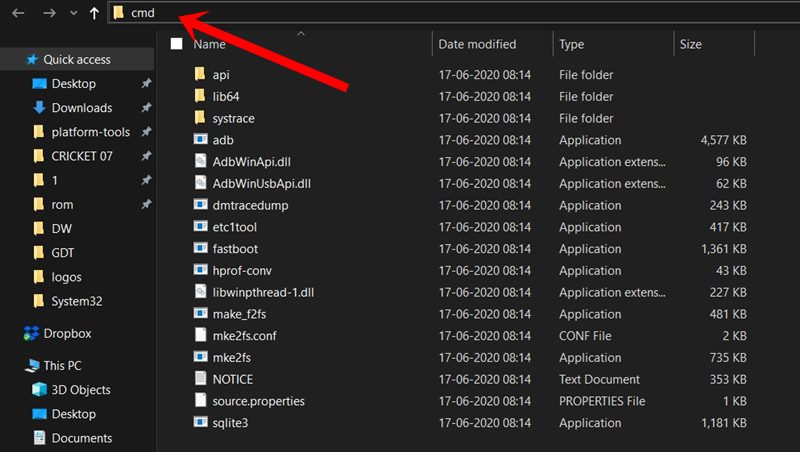
- Execute the below command in the CMD window or enter recovery mode using the Volume and Power button combination to boot your device to TWRP Recovery:
adb reboot recovery
- Now head to the Install section and navigate to the downloaded vendor and firmware. Perform a right swipe to flash it.
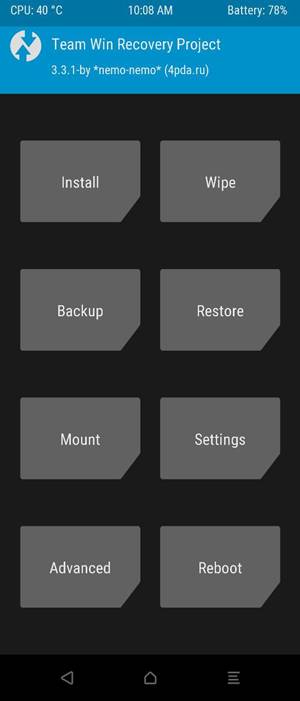
- If you want Google Apps as well, you need to flash it at this instance. Go to Install, select the GApps ZIP file, and perform a right swipe to flash this file.
- When that is done, you may reboot your device. Head over to Reboot and select System.
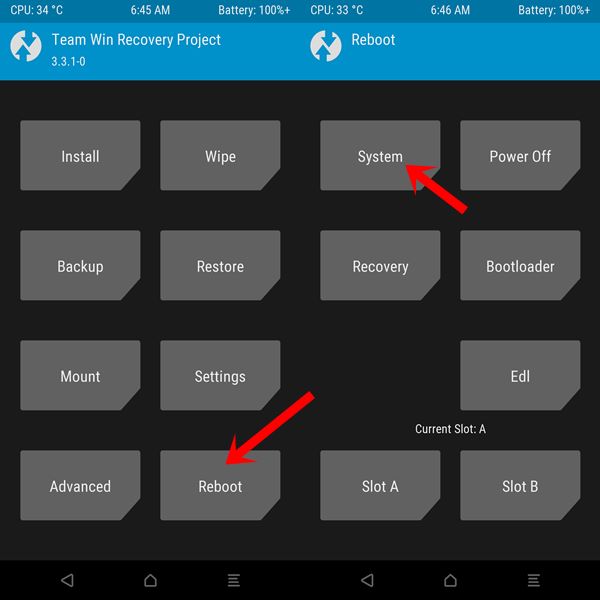
The first boot after installing a custom ROM may take a bit longer than usual, so don’t panic if it seems slow. After the device boots, you will need to set it up as a new device, just like when you first got it.
Final Words
By flashing Android 16 on your Xiaomi Mi A3, you’re extending its life and unlocking modern Android features that Xiaomi may never officially provide. While this is an unofficial AOSP build, early reports suggest solid stability. That said, bugs may still appear, so always report them with logs to help developers improve the experience.
If you have questions or run into issues during installation, feel free to drop a comment. Enjoy your fresh Android 16 experience!